Mobile App: Frequently Asked Questions

We answer your commonly asked questions about our mobile app.

Who can use the Mobile Banking App?

Personal: sole or joint account holders with a valid mobile phone number associated to their account that is capable of receiving SMS one-time passcodes.

Organisations: with the following signing mandates:

– Any one
– Any Two or;
– All to sign.

Mandates outside of those shown above are not supported in the Mobile Banking App.

All signatories will need to register to use the Mobile Banking App to benefit from the full functionality including multi sign payment instructions. Each signatory shall need to hold a valid mobile phone number. If all signatories are not registered, the App can be used to view your account(s), send secure messages and view/download eStatements by those that do so.

What functionality does the Mobile Banking App offer?

The Mobile Banking App provides registered users with the ability to perform the following tasks:

  1. View, share and download eStatements
  2. Maturity instructions can be managed – sole signatory only
  3. Secure messaging to and from us
  4. Set up and amend payments from your account(s) to your nominated account
  5. Set up and amend transfers between your accounts with us
  6. View transactions

How do I access the Mobile Banking App?

Existing Savers
We shall be inviting existing savers over a period of time. You will receive an invite which will include guidance on how to download the Mobile Banking App along with confirmation of your unique Customer Number. In order to issue you an invite we shall need to hold a valid mobile number for you and email address, which will be required to complete registration.

First Login
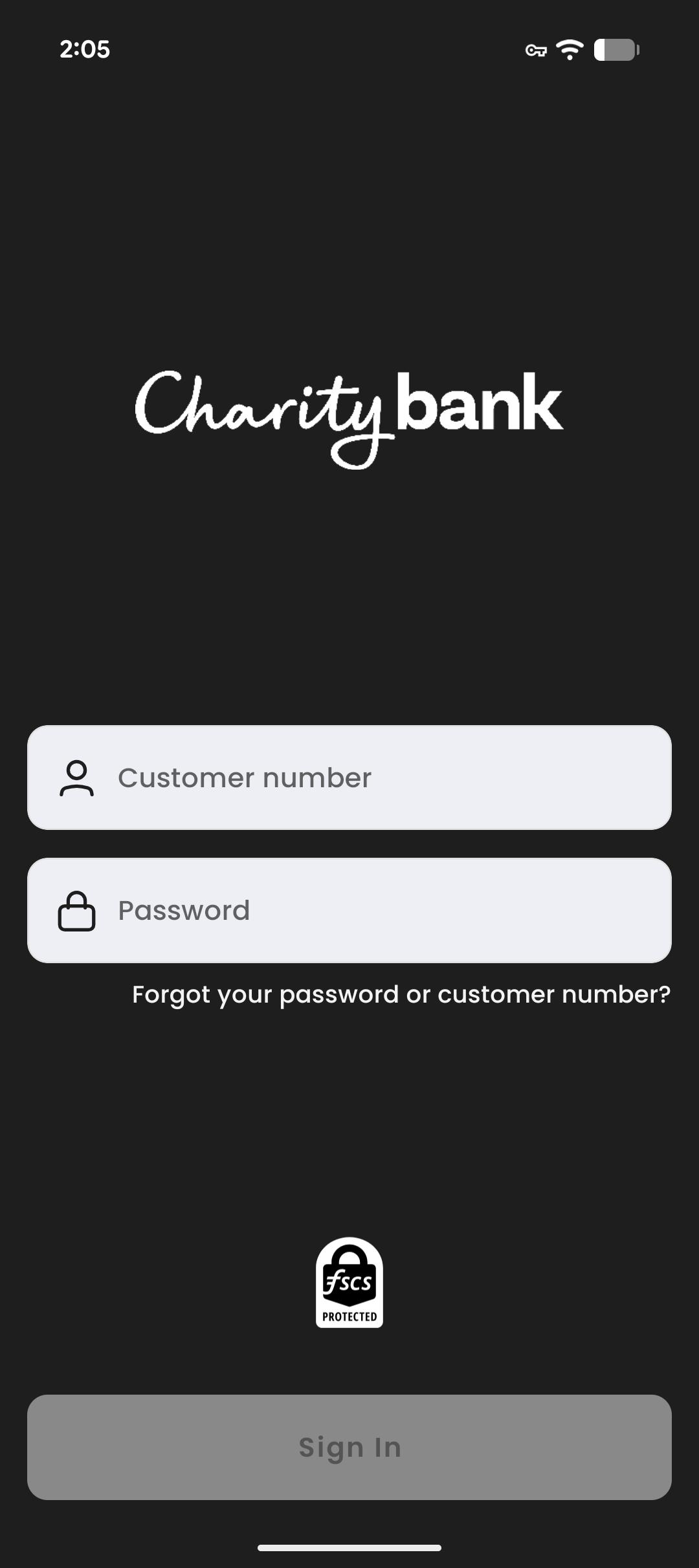
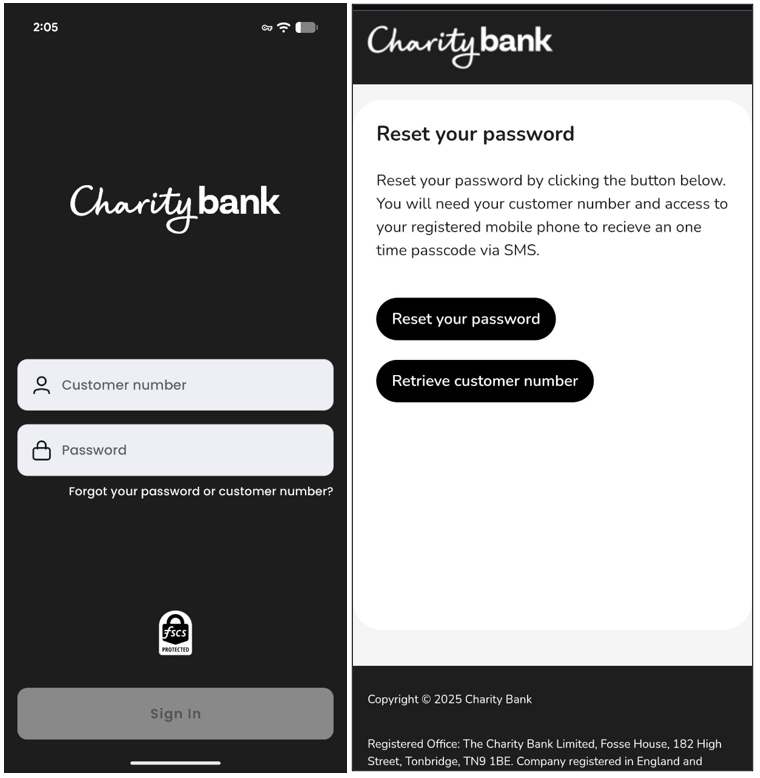
You will need your invite email with your Customer Number and your registered mobile phone. On the login page of the Mobile Banking App, please select ‘Forgot your password or customer number?’  and then follow the ‘Forgot your password’ journey to set your password. A one-time passcode will be sent via SMS to verify this request.

New Savers
Once the Mobile Banking App is ready to accept new savers, following completion of an application to open a new savings account you will receive an email confirming your registration to the Mobile Banking App and how to proceed. As part of the application process you will be prompted to set a password for the Mobile Banking App.

If you do not receive this as part of your application you will receive an invite as per the above existing savers guidance.

First Login
You will need your invite email with your Customer Number and your registered mobile phone and password set when completing your application.

What iOS and Android versions are supported by the Mobile Banking App?

Currently the following versions are supported:

-iOS 17.0 or later

-Android 12 or later

Over time older versions do fall out of support, and you will need carry out software updates to ensure your device is able to support the Mobile Banking App. If you cannot update to these operating versions or no longer wish to use the App, you can continue to manage you account with us in the normal manner.

What is my Customer Number?

Your Customer Number is unique to you (each account holder/signatory) and allocated when you first open an account with us. We shall share this number with you when confirming your registration to the Mobile Banking App, as it will be required to log in.

On the login page of the Mobile Banking App, you can select ‘Forgot your password or customer number?’ and then follow the ‘Retrieve customer number’ journey to receive a reminder of it by email. You will need your registered mobile phone, as a one-time passcode will be sent via SMS to verify this request.

I have forgotten my password – what do I do?

On the login page of the Mobile Banking App, select ‘Forgot your password or customer number?’ and then follow the follow the ‘Reset your password’ journey. You will need your registered mobile phone, as a one-time passcode will be sent via SMS to verify this change.

Can I use Touch or Face ID to login?

Yes, if you mobile device suports this, when you login for the first time you will be asked if your would like to enable this feature.

Your election can be amended at any time via ‘Menu’ and ‘Face ID’ for iOS devices or ‘Biometrics’ for Android.

What is a Secure Message and how do I send or view them?

Within the Mobile Banking App, “secure messaging” supports the sending and receiving of messages to/from us. Any information shared is encrypted, helping to keep your personal and sensitive details safe and secure.

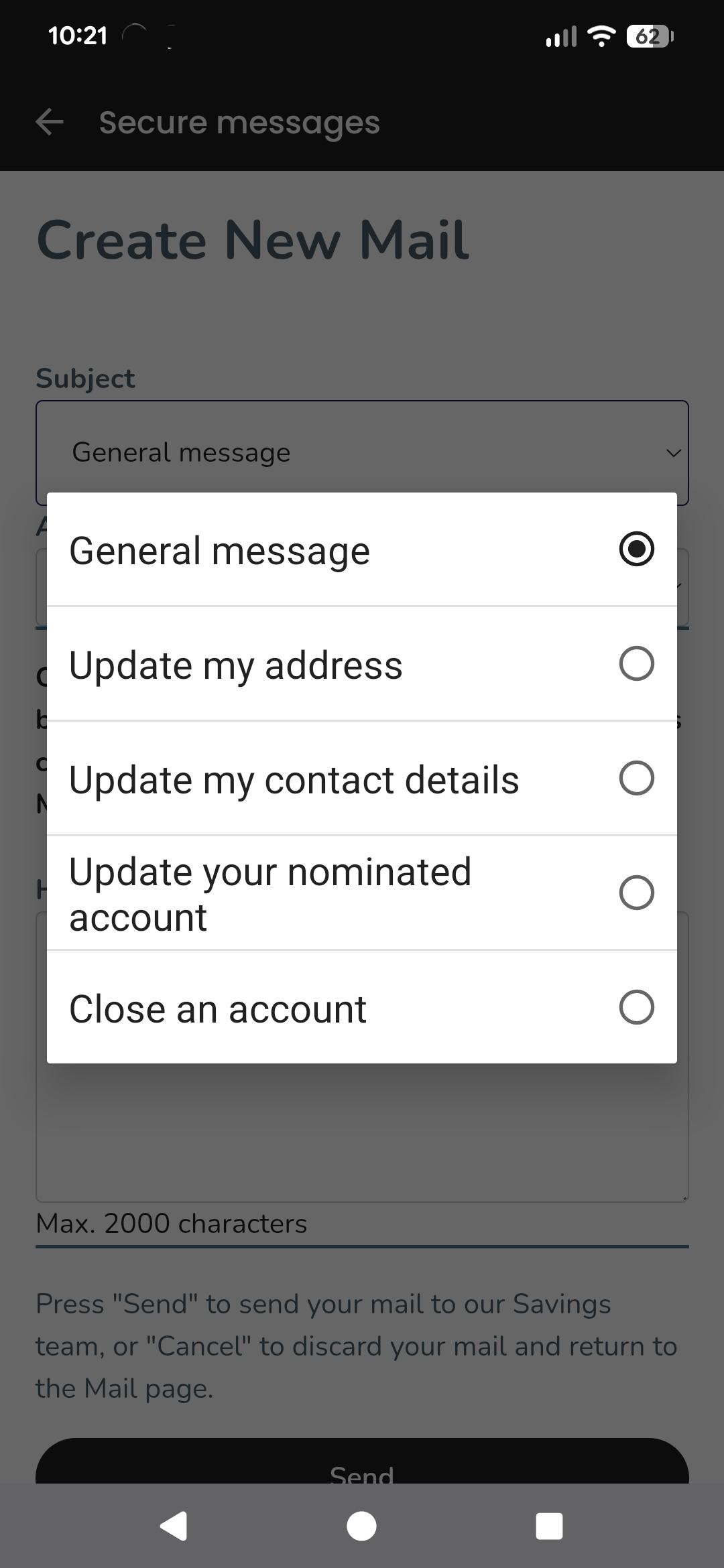
Secure messaging can be accessed once signed into the Mobile Banking App via ‘Menu’ then ‘Secure Message’. You can then review messages you have received from us, reply or start a new message using the following templates;

  • General message
  • Update my address
  • Update my contact details
  • Update my nominated account
  • Close an account

When you receive a message from us, you’ll get a push notification to your device (if you’ve enabled notifications in your settings). You’ll also see a notification banner the next time you log in, letting you know you have a new secure message, which you can select to navigate to your new message. This notification will not appear on subsequent logins once the message has been read.

How do I change my Mobile Banking App PIN?

The first time you login you will be prompted to set a PIN, which you will need to enter each time to login, unless you enable biometrics.

Should you need to change your pin you will need to log in to the Mobile Banking App, select ‘Menu’ then ‘Change PIN’.
You will be prompted to enter your current PIN, then your new PIN twice. You can use this new pin on your next login.

If you enter your pin incorrectly 3 times, login will be suspended. You will need to contact us on 01732 441944 where the team will assist you regain access.

How can I see my statements?

If a statement has been produced on the account this can be found by selecting your account on the home screen, then the 3 lines in the top right corner, the selecting ‘eStatements’. From there you can view the last 2 years of statements which can be viewed, shared or downloaded if needed.

If a statement has not been produced or you are looking for a specific payment this can be found by searching the transaction page prior to pressing the button in the top right corner.

For further information on statements please refer to our Savings Statements page.

Can I access the Mobile Banking App on more than one device?

Yes, you can use the App on more than one device. You can view which devices are registered to to the App via ‘Menu’ and ‘Registered devices’.

If you wish to remove a device, you can swipe right to delete it.

Please contact us immediately if you suspect a device has logged in you do not own on 01732 441944.

My Account shows two balances?

We show two different balances – the current balance and available balance.

Current Balance – the balance of your money in the account.

Available Balance – the balance of your money in the account available to withdrawal (should the terms of your account permit this) once any scheduled payments have been completed.

How can I view details about my account in the Mobile Banking App?

When viewing your account in the app, hit the three lines icon in the top right corner, and then ‘Account Details’.

Here you will be presented with details relevant to your account to review, such as the product name, term or notice period, and start and or maturity date. For fixed term products you can see the projected interest at the end of the term and current accrued interest. For Easy Access or Notice products you can see when interest will next be paid.

You can also set an Account nickname, which is only visible to you in the Mobile Banking App.

Should you need any further information on your account you can refer to the Additional Terms and Summary Box found under our Savings Document Library.

How can I make payment to my nominated account or raise an internal transfer?

Once in the Mobile Banking App you can send or transfer money by either selecting the ‘Move your money’ button from within a specific account or the ‘Pay’ button at the bottom of the homepage.

Once in the payment journey you can select the account you wish to pay the funds from and then the account you want to pay the funds to. The ‘Move your money’ payment journey only requires you to confirm the account to which you wish funds to be paid to. You can repay funds to your external nominated account, or an existing Charity Bank account, terms permitting.

You will then be asked to input the amount you wish to send from the available balance, a description, which will show on your Charity Bank account transactions and statement and the date you want to make the payment. The earliest the payment can be made will fall in line with the terms of your account. e.g. Easy Access next business day, Notice Accounts following the relevant notice period.

Any payment requested after 4pm will be processed the following business day and as such move the payment dates forward 2 business days as per our Payment Times document from when the payment instruction is submitted. You can also elect a payment date in advance of any notice period expiry. Please note if the Mobile Banking App presents a payment on a non-business day, payment will not be processed until the next business day, with interest still accruing until date payment is made.

For accounts with multiple signatories any payment instruction is not complete until all required parties have completed authorisation per your signing mandate e.g. 2 to sign, All to sign etc.

I have received a request to approve a payment on an account I am a joint owner or an authorised signatory for; how do I do this?

Following notification by email that a payment request has been raised on an account you are either a joint owner on or an authorised signatory, you will need to log in to the Mobile Banking App.

Upon login you will be greeted with a notification banner ‘Pending authorisations’. Once selected this will navigate you to any pending authorisations you may have. Select the relevant authorisation you wish to review further to determine if you wish to approve or decline it.

Within the review screen you will be able to see how many approvals are still required for the payment. Such as 1/2, this aligns to your signing mandate set when opening the account. It can also be managed using our Mandate Variation Form.

Following review, you can then select whether to ‘Decline’ or ‘Approve’ the payment. If you chose to decline, you could provide notes to those that will be notified. Upon either action, all owners or authorised signatories will receive an email notification to confirm.

The person that raised the payment will also see the pending authorisation banner within their homepage but will not be able to approve or decline their own payment. This just allows them to monitor progress.

Can I cancel a scheduled payment from my account?

Yes, you can cancel a scheduled payment up until the relevant cut off times detailed in our Payment Times document.

You simply need to login and select the relevant scheduled payment, if you are within the cut off times, you will be able to ‘Delete’ the payment.

Note: If the original payment request required further approvals, please note these are not required for a ‘Delete’ request. This will be actioned on the request of the initiator only.

My fixed term account is due to mature; I’d like to reinvest my maturing funds for a further term. How do I set my instructions in the Mobile Banking App?

As per the terms of your account, we shall contact you when your account is due to mature to advise of the options available to you at this time. You are able to set your instructions within the last 14 days of your fixed term in the Mobile Banking App.

If you chose to continue to save for good with us and reinvest your maturing funds, please follow the below guidance. We do not provide advice on which savings product is suitable for you, it is for you to review our products terms and summary box to determine what is suitable for your needs.

  • When viewing  your maturing account in the app, hit the three lines icon in the top right corner, and then ‘Maturity instructions‘.  Please note this screen can take a short while to load.
  • Details of your account will display here, such as Maturity Date, Interest Fixed Term, Product Type, Interest Rate, Capital balance and the Final interest payment to assist your review. Once ready, select ‘Set maturity instructions’.
  • You will be prompted with the question ‘Would you like to rollover?’, to reinvest any or all of your maturing funds, select ‘Yes, I want to rollover’ from the options presented.
  • Next select the product that meets your needs for reinvestment. We allow you the chance to reinvest into the same product for a further term, or you can select an alternative fixed term (if available). You also have the option to reinvest your funds into our Easy Access or Notice Accounts (if available). Our full range of products can be viewed on our Savings Accounts page. Please note if you are wishing to reinvest your funds into our ISA or CITR BRT products, this cannot be done via the Mobile Banking App, please contact our Savings team on 01732 441944 to discuss this further.
  • Upon selection, you are taken to the Product Summary where you can review the current interest rate (at time of setting instructions) and further details to help you confirm your election. You can go back and change your selection at this point before proceeding. Please review all the information provided, then select ‘Set maturity instructions’.
  • Here you can confirm your ‘Rollover options’ from the following;

Capital & Interest – which will rollover the entire maturing balance

Capital – rollover the initial capital balance and repay the accrued interest

Less than entire balance – you can set the amount you wish to rollover

If you select Capital or Less than entire balance, you will then need to confirm where you would like the remaining interest or balance difference to be repaid to. From the picklist you should be presented with your nominated account, and if you hold any other existing Charity Bank accounts that allow credits to choose from. Once options have been completed, select ‘Next’, which will take you to the Confirmation screen.

  • You will be presented with your Rollover details, such as the product chosen and its details, so term and interest rate, along with the rollover option elected and amount. If you are happy with the details and the disclaimer you can select ‘Confirm’.

We shall confirm receipt, this can take a few minutes, and then you shall be redirected to the Maturity instructions screen again, now presenting a ‘Delete maturity instructions’ button. You can amend your instructions up to 1 day before your scheduled maturity. After this time, you will not be presented with either button any set instructions will be executed. If no instructions have been set, funds will be moved to a notice product as per the terms of your account.

My fixed term account is due to mature; I’d like my maturing funds to be repaid to my nominated account. How do I set my instructions in the Mobile Banking App?

As per the terms of your account, we shall contact you when your account is due to mature to advise of the options available to you at this time. You are able to set your instructions within the last 14 days of your fixed term in the Mobile Banking App.

If you wish to have your maturing funds repaid, please follow the below guidance.

  • When viewing  your maturing account in the app, hit the three lines icon in the top right corner, and then ‘Maturity instructions‘.  Please note this screen can take a short while to load.
  • Details of your account will display here, such as Maturity Date, Interest Fixed Term, Product Type, Interest Rate, Capital balance and the Final interest payment to assist your review. Once ready, select ‘Set maturity instructions’.
  • You will be prompted with the question ‘Would you like to rollover?’, to reinvest any or all of your maturing funds, select ‘No, I do not want to rollover’ from the options presented.
  • You then need to confirm where you would like your interest transferred to upon maturity, and then the capital. From the picklists you should be presented with your nominated account, and if you hold any other existing Charity Bank accounts that allow credits to choose from. Once options have been completed select ‘Submit’, which will take you to the Confirmation screen.
  • You will be presented with your payment details to review. If you are happy with the details and the disclaimer select ‘Submit’ once more.

We shall confirm receipt, this can take a few minutes, and then you shall be redirected to the Maturity instructions screen again, now presenting a ‘Delete maturity instructions’ button. You can amend your instructions up to 1 day before your scheduled maturity. After this time, you will not be presented with either button any set instructions will be executed. If no instructions have been set, funds will be moved to a notice product as per the terms of your account.
Will I receive payment over the weekend or on a bank holiday?

No, we do not process payments over the weekend or on bank holidays.

The Mobile Banking App may initially default to a non-business day, or you may be able to select a non-business day in the future if wish to serve more than your notice period. However, upon completion of the payment request, including those that require additional authorisation, your payment date will be adjusted to reflect repayment on the next business day available. Your account will continue to accrue interest on the relevant balance until date of repayment.

The below advice is provided on the payment screen for awareness.

Future dated payment requests with a date that is a non-business day will be paid the next business day.

I have just sent a payment to my account, but it is not showing under my transactions in the Mobile Banking App?

As a smaller bank, we are not a direct participant in the Faster Payment Scheme operated by pay.uk. Unlike a direct participant, transactions into your account are not reflected in real time. As an indirect participant, we connect to the scheme via our sponsoring direct participant bank, NatWest.

We retrieve 2 payment files daily at 9am and 4.30pm to update transactions to accounts, you may notice your credit after these times, however they could take up to 24 hours to show in the Mobile Banking App. The original payment date is reflected to your account, not when it is processed through our system, so you are not disadvantaged.

If you would like to know more about the Faster Payment Scheme, visit the pay.uk website.

My nominated account is not showing to request repayment to?

If when processing a payment from your account you are not presented with your nominated account to confirm repayment should be made to, please contact our Savings Team on 01732 441944, who are available Monday to Friday, 9am-5pm.